SlipFresh guide · iPhone and iPad
How to turn a dish photo into a grocery list
Take a photo of a meal, review the suggested ingredients, and add only what you need to buy. Check your fridge first so you can cook with what you already have.
Get SlipFresh on the App Store
Available in the latest SlipFresh 1.6 release on iPhone and iPad. Claim 3 months free with SLIPFRESH3MONTHS.
Try it with tomato and eggs
- Step 1
Open a dish photo
In List, choose Add from Dish Photo. Take a picture or pick one from your photo library, then tap Identify ingredients.
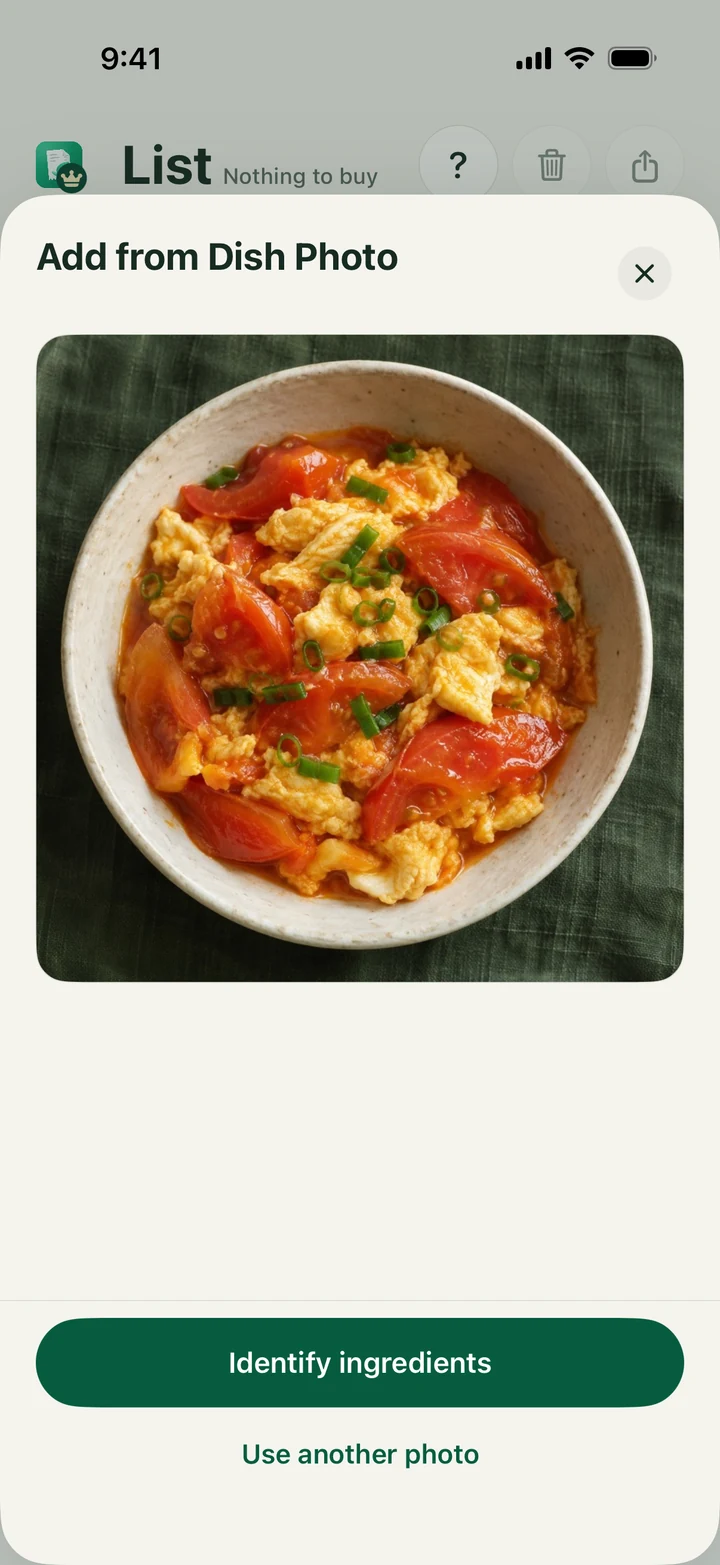
Preview the photo before sending it. - Step 2
Review what the photo suggests
For this dish, SlipFresh suggests tomatoes, eggs, and scallions with food icons, and reuses matching staples already on your list to avoid duplicates. If scallions show in Fresh, check the fridge and leave them unchecked if you still have some.
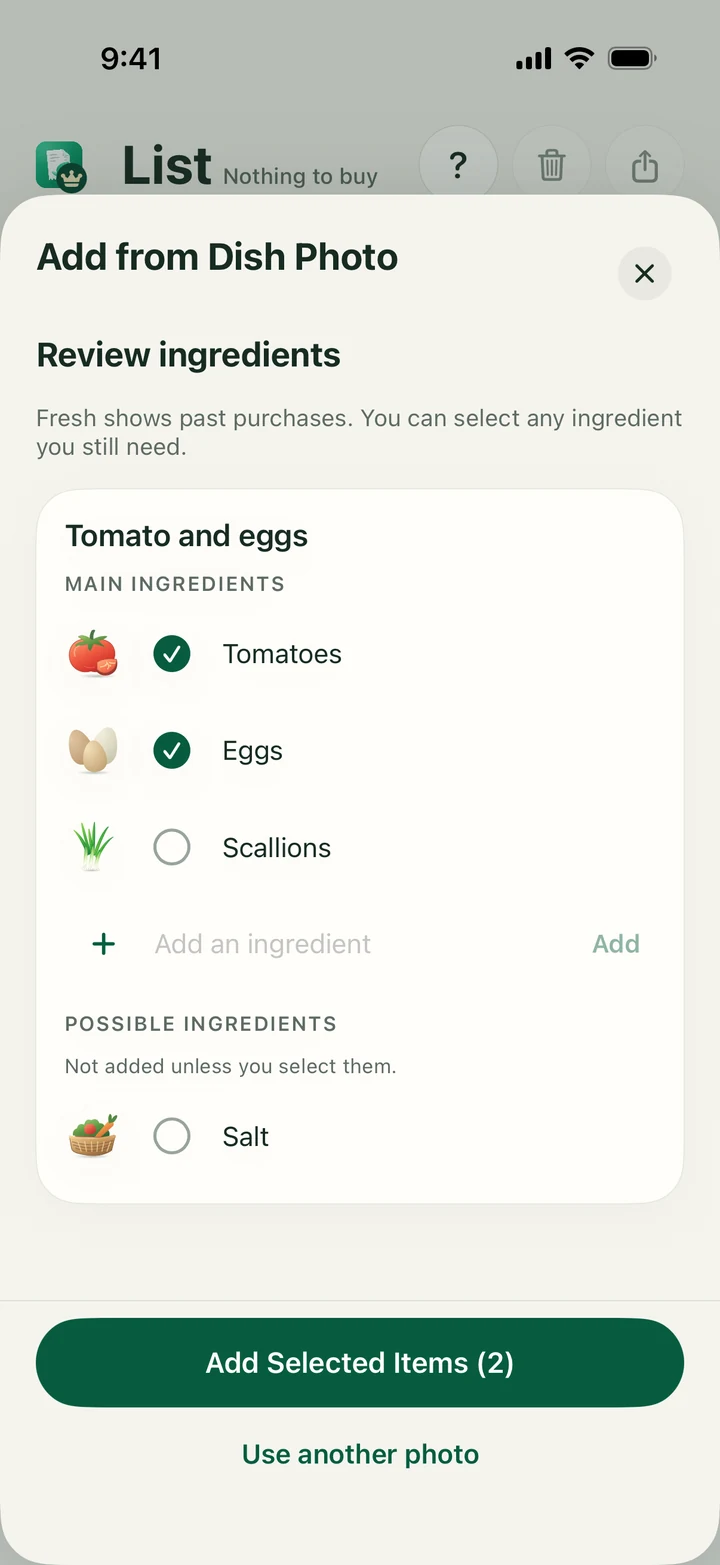
You decide which ingredients to buy. - Step 3
Add only what you need
Tap Add Selected Items (2). Only tomatoes and eggs go on your list. Take the list to the shop, share it as an image, and scan your receipt afterward to update your list.
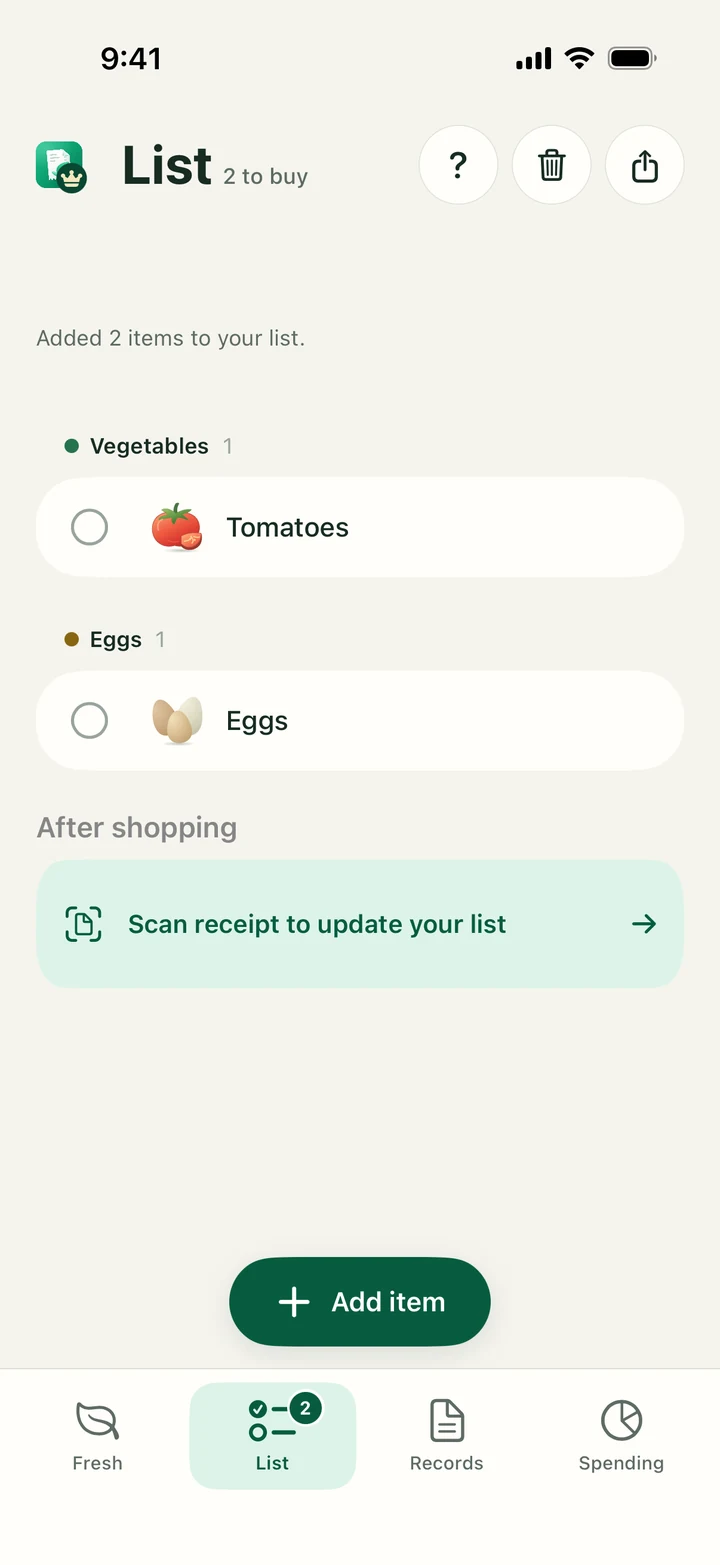
Scallions stay off the list.
Use what you already bought
Before leaving for the store, put the ingredients you already have together on the counter. Compare them with the suggested list. This takes a moment and helps you avoid buying another bunch of something you could use tonight.
SlipFresh's Fresh view reflects recent purchases, not live fridge stock. Check what is actually there.
What the photo can and cannot tell you
- Does a photo give me an exact recipe?
- No. It suggests ingredient names, not exact quantities or cooking instructions. Review the results, especially for sauces, seasonings, or ingredients you cannot see.
- How many free scans do I get?
- Eligible new users get 10 free AI scans shared across dish photos and grocery receipts. A successful dish scan uses one scan even if you add nothing or stop waiting.
- Does dish scanning work offline?
- No. With your permission, SlipFresh sends the dish photo through its service to Google Gemini to suggest ingredients. Read the privacy policy for details.